
Passkeys for beginners
We are all familiar with passwords and passphrases. A combination of numbers, alphabets and symbols that can be a pain in the (we trust you to pick the right body part).
Now imagine a world that’s free from passwords and passphrases. No more 16 plus characters, uppercase and lowercase letters, spaces, symbols or numbers. Drumroll. Enter passkeys.
What are passkeys?
Passkeys are a new login experience. You log into an app or website in the same way you unlock your device using a pin, pattern or biometrics like your face or fingerprint. All without passwords. Since there are no passwords, weak passwords like Password123 are a thing of the past.
And if an app or website you used was ever hacked, it’d stop cybercrooks too as there’d be no passwords to steal. And for the grand finale, it comes bundled with multi-factor authentication that replaces traditional methods like SMS or an authenticator app. If there was anything better than sliced bread, passkeys are it.
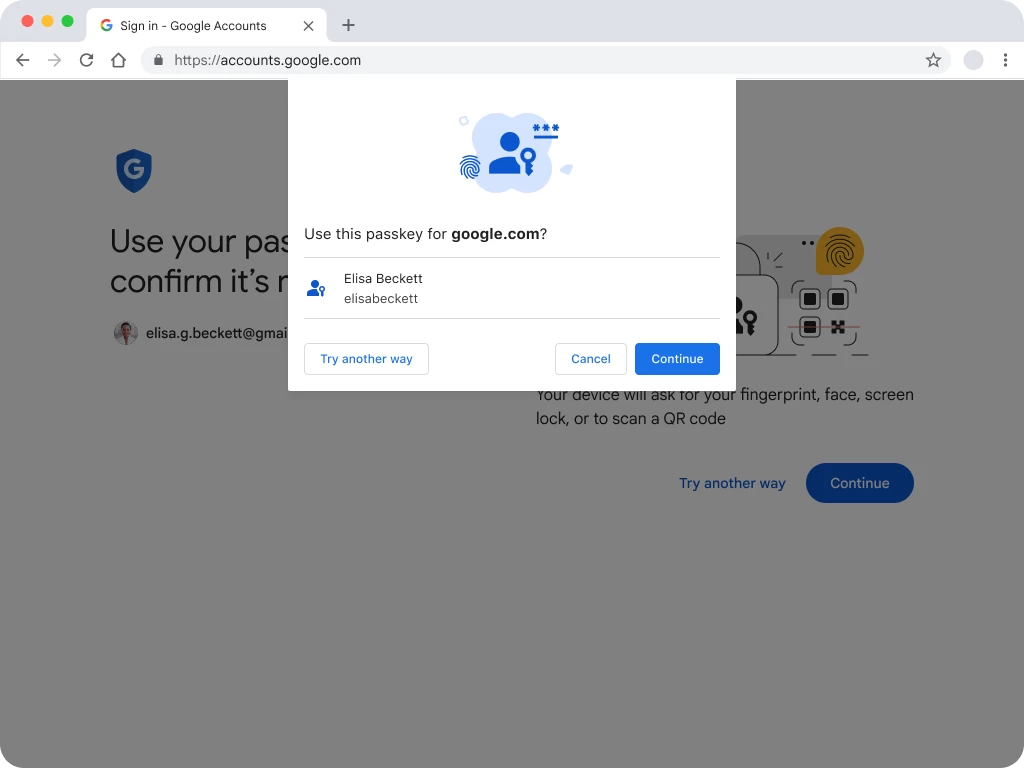
With all the benefits of passkeys, they are all the rage at the moment. Companies like Google are leading the pack with rolling them out to all their users. The next time you log into Gmail, you’ll start seeing prompts to use passkeys. The look and feel you get for setting up passkeys will vary depending on the app or website you are using as well as your operating system and browser.
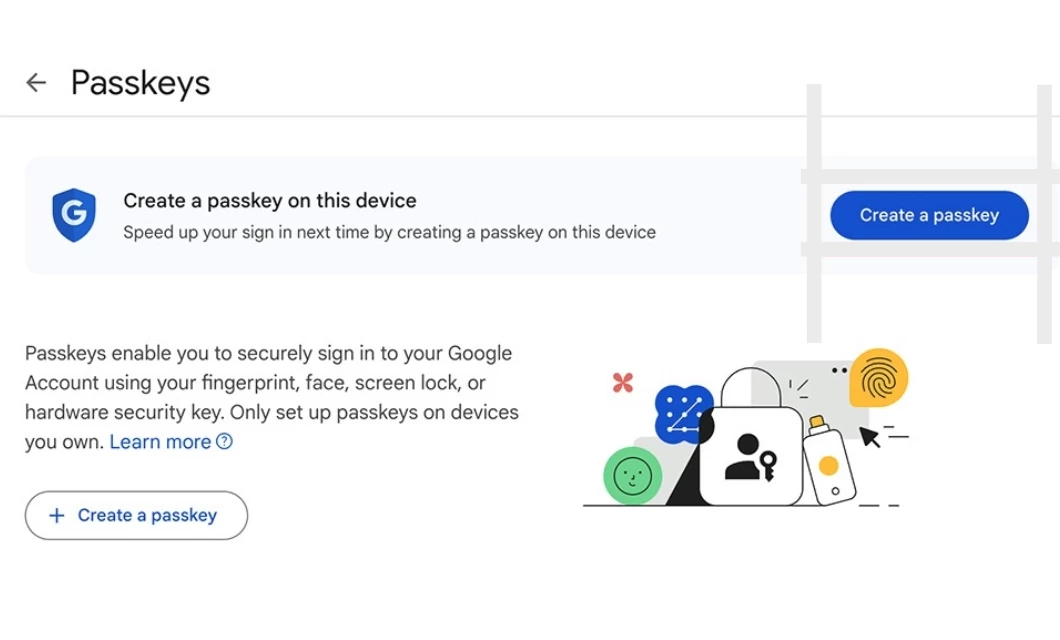
For all of it to work, you’ll need a few things. A browser, password manager (if you aren’t already using the one that comes with your favorite browser), operating system and/or hardware device that’ll support it. Websites and apps need to offer passkeys as an option as well. Right now, it’s a small growing list of apps and sites. And once passkeys have been setup, you’ll be able to sign-in with your pin, pattern, face or fingerprint.
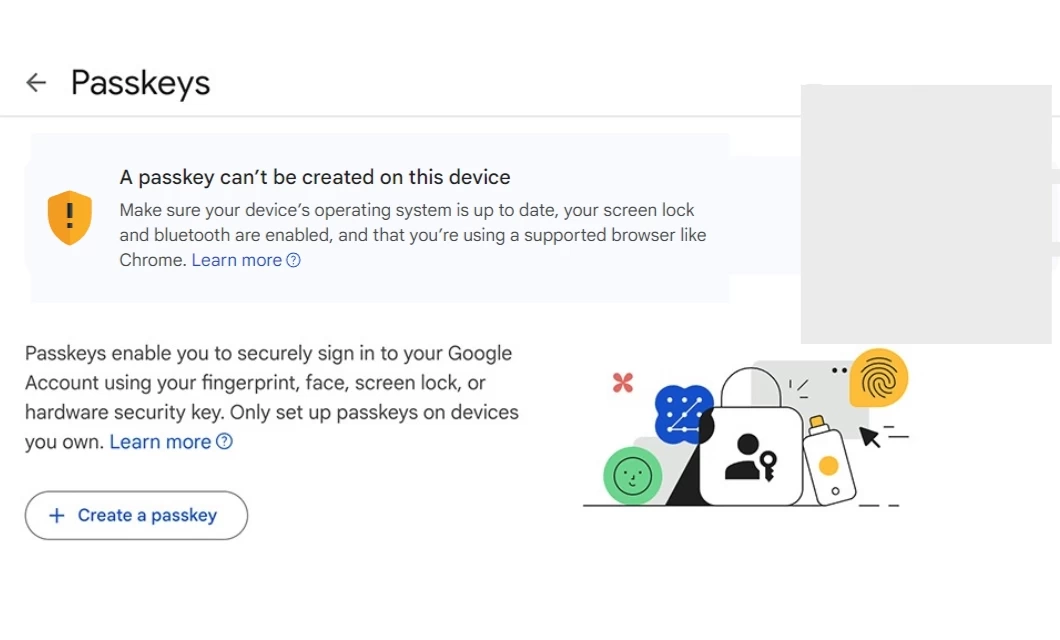
If your browser, operating system and/or device doesn’t support passkeys, you’ll get a warning.
How do passkeys work?
If you decide to go all in, the whizzbang happens in the background. Your browser or password manager if you are using a separate app together with your operating system and device do all the heavy lifting for you.
Let’s imagine you’d like to register for an account on one of the many devices you own or maybe you just have the one. The app or website you sign-up with replies with a response that gives you range of options to choose an authenticator for that device. An authenticator can be a password manager, the fingerprint scanner on your device and/or a USB security key like a Yubikey. Your authenticator then nudges you to verify yourself with your pin, pattern, your face or fingerprint.
Next, the authenticator magically creates a key pair using public-key encryption. The first key is called a private key and the second’s the public key. Together, they function like your password. The private key is stored in a secure location on your device called the security enclave. It could also be saved in a password manager or dedicated hardware like the YubiKey. Your private key is yours and almost never shared with anyone else.
If you already have an account or possibly multiple accounts for personal and work, it works in a similar way. You’d login and you’ll either get a message asking if you’d like to create passkeys or you can head on over to the security section of your account to generate them. You can usually have both your password and passkey so you can log in with either. In the future, you may only ever need your passkey.
Pro tip
When setting up passkeys, remember to use a device only you control and own. If passkeys are setup on a device others can unlock, they’ll be able to log into the app or website you have an account with.
If you’d like to access an app or website across multiple devices without setting up passkeys for each device, your private key is the answer. Depending on how the devices are configured and where you choose to save your private key, they all do it differently.
For example, if your private key is stored in a password manager, it’ll synchronize it in the same way your passwords are so that you can access it across multiple devices. Apple does it with your Apple ID account and the iCloud Keychain. Google uses your Google account plus the Google Password Manager. This beats creating separate passkeys for every device you have.
If your private key is locked away in a security key, you’ll need to plug it in via USB on the device you are using. And if the private key is in a security enclave, you can only login with that specific device unless you create separate passkeys for all the other devices you have. Security keys and enclaves can be less convenient but they provide a higher level of security against theft.
It’s worth noting when you store private keys in the iCloud keychain or a password manager, they are encrypted. If you are using your device, it’d be your password or passcode. If you are using a password manager, it’d be your secret key with your master password. Biometrics like your face are kept the a secure enclave, stay local and aren’t copied anywhere so that they can’t be stolen.
Your public key is up next. The app or website you registered with or have an account with keeps a copy the public key and uses it to match it with your private key the next time you login. It’ll also ask you to authenticate with your pin, pattern, face or fingerprint. That’s it. It’s that simple. Nearly. There’s a whole lot more that goes on and as an end user, it all happens lickety-split behind the scenes.
If you’d like to know whether passkeys are for you, check out the benefits and downsides of passkeys.